How to Share a Notion Page Securely With Clients
How to Share a Notion Page Securely With Clients
If you work with clients, Notion is a tempting place to share deliverables: proposals, reports, project dashboards, onboarding docs. It's clean, it's fast, and your client doesn't need to learn a new tool.
But the moment you go to share that page, you hit a wall. Notion gives you exactly two options, and neither is quite right for client work:
- Invite the client to your workspace — but this requires them to have a Notion account, accept an invite, and navigate your workspace. Most clients won't bother, and you may not want them inside your workspace at all.
- Share a public link — but "public" means anyone with the link can view it. No password, no control. If that link gets forwarded, screenshotted, or indexed by Google, your client's confidential report is out in the open.
For a quote, a contract, or a confidential report, "anyone with the link" is a risk you don't want. So how do you share a Notion page with a client securely? Here are the real options in 2026, with honest pros and cons.
Option 1: Invite-only sharing (native)
You can share a page with specific people by entering their email in Notion's Share menu.
Pros: Fully native, granular control, no third-party tool. Cons: The client needs a Notion account and has to accept an invite. For one-off client work — a single proposal or report — this is friction most clients won't push through. It also potentially exposes parts of your workspace you'd rather keep private.
Best for: ongoing collaboration with clients who already use Notion.
Option 2: Public link, then un-publish manually
You can publish the page to the web, send the public link, and then manually un-publish it once the client has seen it.
Pros: No account needed for the client; quick. Cons: While it's live, anyone with the link can see it — there's no password. You have to remember to un-publish it, and there's no expiration or access control in between. Not suitable for anything confidential.
Best for: non-sensitive, short-lived shares where convenience beats security.
Option 3: Export to PDF
You can export the Notion page as a PDF and email it.
Pros: Simple, works offline, no link to manage. Cons: The moment you export, the document is frozen — no live updates, no formatting fidelity for complex pages, and you lose the interactive Notion experience. For a living project dashboard, this defeats the purpose.
Best for: final, static deliverables that won't change.
Option 4: Password-protect the public page (the missing middle)
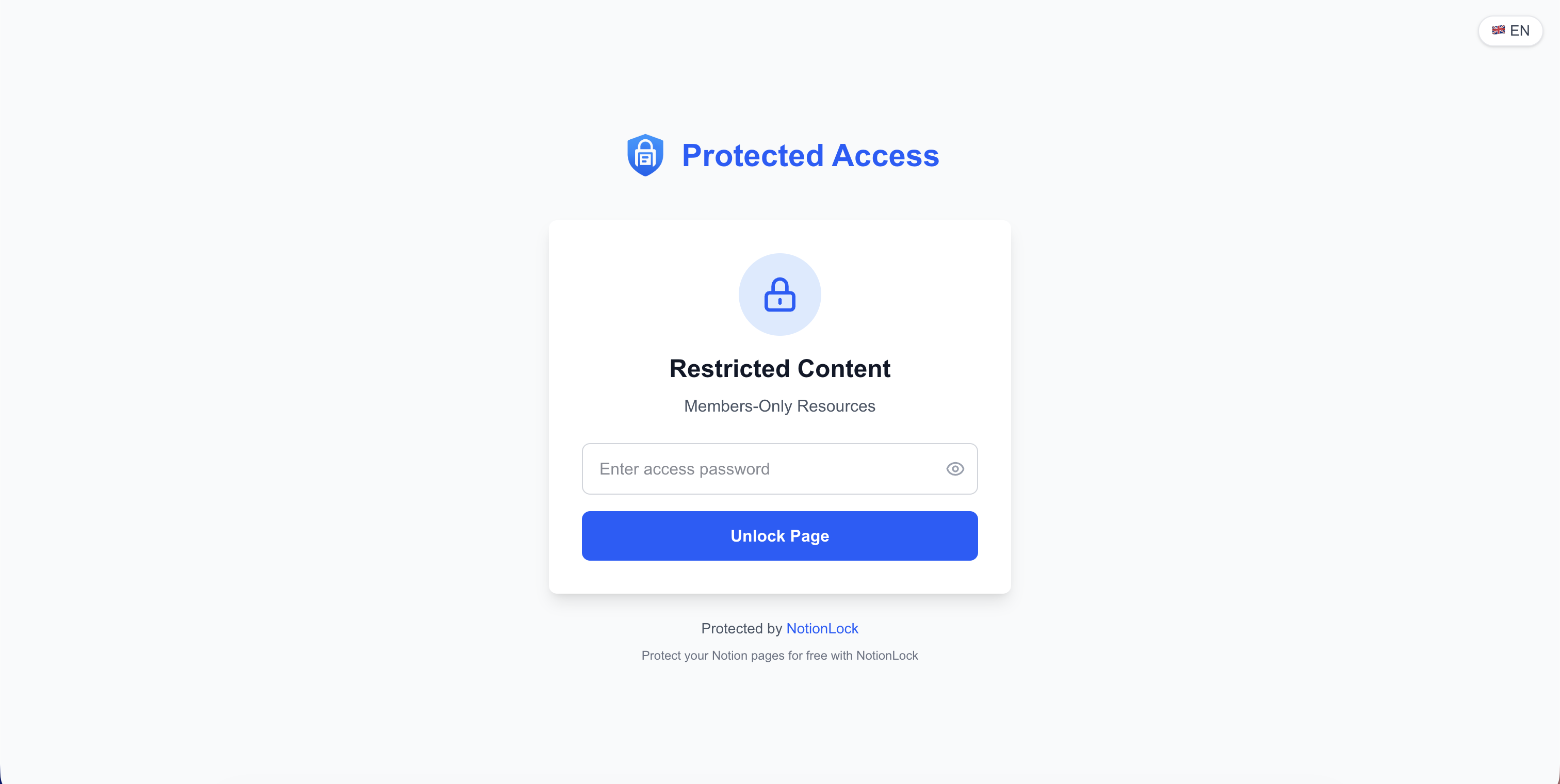
This is the option Notion doesn't offer natively: a public link protected by a password. The client opens the link, enters a password you've shared with them, and sees the page — no Notion account required on their end.
This is exactly what NotionLock does. You paste your public Notion link, set a password, and you get a protected link in about 30 seconds. The client just needs the password.
Pros:
- No Notion account needed for the client — they just enter the password.
- The original Notion URL stays hidden, so the page can't be bypassed by guessing the raw link.
- You can set link expiration, so access ends automatically.
- Works for proposals, reports, client portals, and confidential deliverables.
Cons: It's a third-party layer (not native to Notion), so you're relying on an external tool to act as the access gate. For genuinely high-security needs (legal, medical, regulated data), a dedicated document platform may be more appropriate.
Best for: freelancers and agencies who want to share live Notion pages with clients securely, without making the client sign up for anything.
How the password option works, briefly
When you protect a page with NotionLock, the tool acts as an access gate in front of your public Notion link. It never modifies your workspace — it only controls who gets through. Passwords are hashed (with bcrypt), never stored in plain text, and the underlying Notion URL stays hidden so visitors can't skip the gate.
For a freelancer sending a client a project dashboard, this means: one link, one password, live updates, and no "anyone with the link" exposure.
Which option should you choose?
- Client already uses Notion and you collaborate ongoing → invite-only.
- Quick, non-sensitive share → public link (and remember to un-publish).
- Final static document → PDF export.
- Live page, confidential, client without Notion → password protection.
For most client work — proposals, reports, deliverables shared with someone who isn't in your Notion workspace — the password option hits the sweet spot between security and convenience.
Try it free
You can protect your first Notion page with NotionLock in about 30 seconds. There's a free plan, and your client never needs a Notion account — just the password.
Protect your Notion pages in 30 seconds
Add a password to any Notion page without writing a single line of code.
Start free